
This post is meant to be a quick getting started guide and not a comprehensive one, for the current version of editor in the latest build (2025.12.31.3103) (yes, there's an editor in the game!)
Opening the Editor
There are currently 2 ways of opening the editor, first way is using the menu tabs View > Debug > Editor Toggle
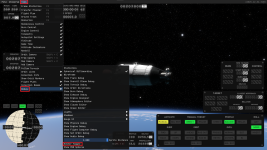
And by using the keybind Shift + E
Closing the editor can be done the same way, either using the GUI or keybind
Basic Editor Controls
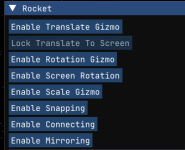
Most of the controls are done using the panel on the left, as seen here
Translate / Rotation / Scale Gizmos
They're quite self-explanatory, they let you move, rotate and scale parts. Although rotation and translation gizmos are broken at the moment. Trying to move or rotate an attached part will turn it into a ghost part, and unless that part is reattached it will be deleted upon quitting the editor. Scale gizmo doesn't have this problem.
The entire spacecraft can be moved by selecting the "root" part (for the default rockets, this part is the capsule. For any custom rockets, it's the part you started with. If you aren't sure which part the root part is, or want to change it, you can always re-root the rocket by right-clicking any connected part and pressing "re-root") this is important since objects spawn at the origin point, which is usually inside the rocket.
The "Lock Translate To Screen" option is only available if the translate gizmo is enabled.
Any part can be dragged with the mouse cursor at any time instead of using the translate gizmo, as it doesn't need to be enabled. The mouse wheel can be used to move them closer to or farther away from the camera.
Snapping and Connecting
Snapping can be used to radially attach parts by dragging them to any connected part, it can also be bundled with "mirroring" to have a 2-way mirror, only around the part they're being snapped to. It can be used to attach RCS ports, decorative monopropellant tanks, or extra fuel tanks to have more engine attachment points.
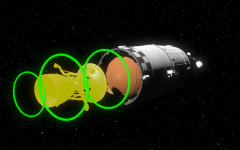
Connecting can be used to attach parts to each other using their attachment points, these points are single-use and cannot be stacked. Parts with attachment points will have a green halo around them when dragging another object. Getting both objects close enough with the sides with attachment points facing each other will connect them. This is a way to ensure engines are perfectly centered.
There are still a few things I'd like to mention about the tools:
-Unfortunately making engines or RCS ports bigger don't make them any stronger
-Moving an object with a mirrored counterpart doesn't remove its mirrored version, just makes another one if mirroring is enabled.
-Do not attempt to edit any of the kittens, as they will get mad and crash your game
-Using middle mouse button brings up a craft save/load menu
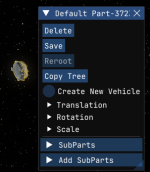
-You can right-click any part (including ghost parts) to bring up a context menu, this can be used to move, rotate and scale objects with numerical values instead of gizmos, change the root part of the existing craft (the part has to be connected) and turn a ghost part into a new craft. The "Add SubParts" category is more complicated and I won't be going into it with this guide, but basically you can give parts properties of other parts (E.g turning the light part into a thruster by giving it the same sub-parts in a regular engine)
This guide isn't final, I'll try to keep it updated until they release a better editor. If you have any suggestions on what I should add/change about the guide, let me know on the Discord (@lbtr or Lobter#0010), or this thread.
Opening the Editor
There are currently 2 ways of opening the editor, first way is using the menu tabs View > Debug > Editor Toggle
And by using the keybind Shift + E
Closing the editor can be done the same way, either using the GUI or keybind
Basic Editor Controls
Most of the controls are done using the panel on the left, as seen here
Translate / Rotation / Scale Gizmos
They're quite self-explanatory, they let you move, rotate and scale parts. Although rotation and translation gizmos are broken at the moment. Trying to move or rotate an attached part will turn it into a ghost part, and unless that part is reattached it will be deleted upon quitting the editor. Scale gizmo doesn't have this problem.
The entire spacecraft can be moved by selecting the "root" part (for the default rockets, this part is the capsule. For any custom rockets, it's the part you started with. If you aren't sure which part the root part is, or want to change it, you can always re-root the rocket by right-clicking any connected part and pressing "re-root") this is important since objects spawn at the origin point, which is usually inside the rocket.
The "Lock Translate To Screen" option is only available if the translate gizmo is enabled.
Any part can be dragged with the mouse cursor at any time instead of using the translate gizmo, as it doesn't need to be enabled. The mouse wheel can be used to move them closer to or farther away from the camera.
Snapping and Connecting
Snapping can be used to radially attach parts by dragging them to any connected part, it can also be bundled with "mirroring" to have a 2-way mirror, only around the part they're being snapped to. It can be used to attach RCS ports, decorative monopropellant tanks, or extra fuel tanks to have more engine attachment points.
Connecting can be used to attach parts to each other using their attachment points, these points are single-use and cannot be stacked. Parts with attachment points will have a green halo around them when dragging another object. Getting both objects close enough with the sides with attachment points facing each other will connect them. This is a way to ensure engines are perfectly centered.
There are still a few things I'd like to mention about the tools:
-Unfortunately making engines or RCS ports bigger don't make them any stronger
-Moving an object with a mirrored counterpart doesn't remove its mirrored version, just makes another one if mirroring is enabled.
-Do not attempt to edit any of the kittens, as they will get mad and crash your game
-Using middle mouse button brings up a craft save/load menu
-You can right-click any part (including ghost parts) to bring up a context menu, this can be used to move, rotate and scale objects with numerical values instead of gizmos, change the root part of the existing craft (the part has to be connected) and turn a ghost part into a new craft. The "Add SubParts" category is more complicated and I won't be going into it with this guide, but basically you can give parts properties of other parts (E.g turning the light part into a thruster by giving it the same sub-parts in a regular engine)
This guide isn't final, I'll try to keep it updated until they release a better editor. If you have any suggestions on what I should add/change about the guide, let me know on the Discord (@lbtr or Lobter#0010), or this thread.




![Docent is playing! [YT]](https://forum-data.ahwoo.com/avatars/s/1/1152.jpg?1763153219)


