One True Linux Thread™

It all depends on the licensing model and way of verifying licenses. If the bineries wherent something that needs to be protected (like microsoft does it with windows) one could package them in all maner of formats. My guess (and hop for not having online drm) would be to have drm free versions that can be downloaded once bought.
As rpm user i would welcome a format like fletpak so i dont have to fiddle with deb packe unpacking.
 
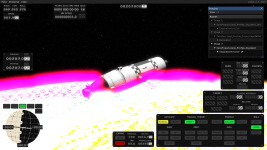
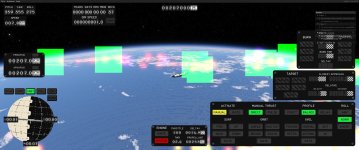
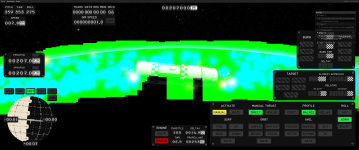
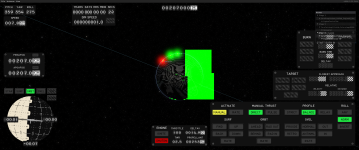
I installed the game by running the installer with wine, and the game boots, but the earth looks horrible and I get low performance, but I think my GPU is just too weak and if I lowered enough settings it would work better. If I run the game on Windows 10 on the same machine, the game also runs horribly, but the graphics bug with the earth is gone, but volumetrics are always drawn on top. I'm on Linux Mint.

CPU: AMD Ryzen 7 5700X (8 core processor, about 3.3 GHz)
GPU: AMD Radeon RX 470/480/570/570X/580/580X/590 (I'm confused, I think the computer knows it's one of these but can't figure out which one)
 

Attachments

  • Screenshot from 2026-02-13 20-12-11.png
    Screenshot from 2026-02-13 20-12-11.png
    585.9 KB · Views: 0
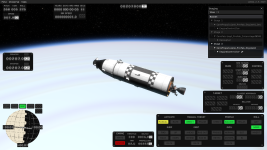
I switched off the ocean, the clouds and the godrays and earth is still buggy but not blinding
 

Attachments

  • Screenshot from 2026-02-13 20-29-49.png
    Screenshot from 2026-02-13 20-29-49.png
    625.9 KB · Views: 0
Figured I would provide an update here.

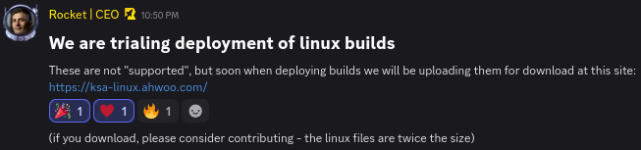
We do want to provide native linux support, that is a Linux download. We've done initial testing producing local linux builds, and we have setup a download repository to push builds to. In the coming months we will start pushing to both the win and linux deployments. This will then allow us to test the feasibility of building, deploying, and supporting linux builds natively.
Like everyone else who is probably enthusiastic about this, I use Linux full time, and would be of the 'evangelist paying customer' archetype, where the question is 'why do you NOT play KSP?' and 'Let me help you with your esoteric linux distro problems so KSP runs great'. I think there's a lot of people like us out here. I have a ton of respect for proton and wine, but if you have a clean build and distribution path for ELF64 and WIN64, I think it speaks volumes about the customer and community integration and support.
 
DistroVGPUDERunnerConfigReport
Ubuntu 24.04.3 LTSAAMD Radeon RX 7900 XTXx11,waylandSteamSee Belowperforms well; some flickering issues with the rendering of planets when the camera is close to them.

System Details​

KSA v2025.11.4.2791 (setup_ksa_v2025.11.4.2791.exe md5sum: 35278d62cd149f12c945b7bf1ac0f44c)
Ubuntu 24.04.3 LTS
Proton 10.0-105
Steam Beta Branch: Stable Client
Steam Version: 1759461205
Steam Client Build Date: Thu, Oct 2 10:27 PM UTC -05:00
CPU: AMD Ryzen 9 9950X
RAM: 32GB
GPU: AMD Radeon RX 7900 XTX
VRAM: 24GB

The Installation Steps I Followed​

Run the Kitten Space Agency Setup Wizard​

  1. Click "Add a Game" at the bottom left of your Steam Library.
  2. Click "Add a Non-Steam Game...".
  3. Click "Browse..." on the "Add Non-Steam Game" dialog.
    • A file chooser dialog should appear.
  4. Navigate to where you have a copy of the setup file mentioned above.
  5. Select the setup file.
  6. Click "Add Selected Programs" on the "Add Non-Steam Game" dialog.
    • This will have created a Non-Steam Game Shortcut in your library. It's name will be the same as that of the setup file you selected.
  7. You may need to search your library for the game if you have a large number of games. Search for the name of the file you selected.
  8. Right click on the game and click on "Properties...".
    • A dialog for the new Non-Steam Game Shortcut will come up.
  9. *Optional*: Change the name of the shortcut from "setup_ksa..." to something better.
  10. Select "Compatibility" from the column on the left.
  11. Check the box labelled "Force the use of a specific Steam Play compatibility tool".
  12. Click on the drop-down and select "Proton 10.0-3".
  13. Close the dialog.
  14. Click the green "Play" button.
    • The "Kitten Space Agency Setup Wizard" dialog should appear.
  15. Click "Install for all users (recommended)".
  16. Click "Next" on the "Select Destination Location" page.
  17. Click "Next" on the "Select Additional Tasks" page.
  18. Click "Install" the "Ready to Install" page.
    • The game will be installed.
  19. Uncheck "Launch Kitten Space Agency" and click "Finish" on the "Completing the Kitten Space Agency Setup Wizard" page.
  20. The setup wizard should close leaving you at your Steam Library.

Get the APPID and Path for the Non-Steam Game Shortcut You Created for KSA​

When you created the Non-Steam Game shortcut. Steam generated an ID for it. You will need that ID later.
  1. In the upper right corner of the main Steam window click on "Steam" and then click on "Settings".
  2. Click on "Storage" on the left.
  3. To the right of the bar that displays how much space is being used click on the three dots button and choose "Browse Folder".
  4. Go into the "compatdata" folder.
    • This should bring up a list of folders with names that are all numbers.
  5. Sort this list by date modified.
    • The newest folder should be the one where Proton installed the Wine prefix for KSA.
    • This number is the APPID. Make a note of it.
    • Also make note of the full path including the APPID folder.

Install .Net 9 Within the Wine Prefix That Proton Created​

If you attempt to run the game, you will most likely get an error telling you to install .NET 9.
  1. Download the .NET 9 installer with the following link.
  2. Right click on the game in your library and click "Properties...".
  3. Click on "Browse..." to the right of the "Target" file path.
    • A file chooser dialog should appear.
  4. Navigate to the location where you downloaded the .NET 9 installer and select it here.
  5. Click the green "Play" button you would normally use to launch the game.
    • This should launch the .NET 9 installer.
  6. Complete the installation of .NET 9.

Set the Target of the Shortcut to the Main Game Executable​

  1. Right click on the game in your library and click "Properties...".
  2. Click on "Browse..." to the right of the "Target" file path.
    • A file chooser dialog should appear.
  3. Navigate to the APPID path you made a note of in the first section.
  4. Go into the "pfx" folder.
  5. Go into the "drive_c" folder.
  6. Go into the "Program Files" folder.
  7. Go into the "Kitten Space Agency" folder.
  8. Select the "KSA.exe" file.
  9. You will need to add double quotes around the path that was filled into the "Target" path field.

Set the Start in Location of the Shortcut to the Main Game Folder​

  1. Click on "Browse..." to the right of the "Start In" file path.
    • A file chooser dialog should appear.
  2. Navigate to the APPID path you made a note of in the first section.
  3. Go into the "pfx" folder.
  4. Go into the "drive_c" folder.
  5. Go into the "Program Files" folder.
  6. Select the "Kitten Space Agency" folder.
  7. You will need to add double quotes around the path that was filled into the "Start In" path field.
  8. Close the dialog.
You should now be able to launch the game as normal with the green "Play" button.
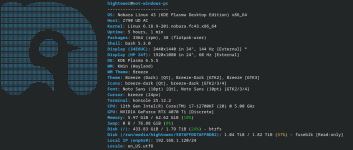
I can say, followed this guide to the letter on Nobara 43 (KDE Plasma 6.5.5) and it worked flawlessly. Though I had two folders that were created at the same time, I had to use the one that was a really big number. (413215840 in my instance, and not the 3658110).

Thanks!

For the record, worked flawlessly at 16k on my 4070Ti (Though I was using 3440x1440 resolution).
 

Attachments

  • Screenshot_20260214_010633.png
    Screenshot_20260214_010633.png
    104 KB · Views: 0
  • Like
Reactions: Terra Incognita