UriahGnu
Member
- Nov 14, 2025
- 61
- 63
So, you want to make your own planets?  Don't we all.

Well, in KSA it is pretty easy, as long as you have some time and patience, and maybe enough VRAM!
If you are a seasoned profeshional, you can just skip ahead to the section on Batch Files, otherwise I recommend you stick with me. Texture compression for games can be a confusing topic, one that still trips me up once in a while. A huge thank you to KSA developer Linx and others on the team!
I will be primarily focusing on texture compression, tools, formats and might even provide some tips for workflow, so let's get started. You will need to download at least the following two applications.
Required Applications
 WARNING: If NVTT gives you issues with large textures, make sure your drivers are up to date, and you can also try Microsoft Texconv as an alternative.
Compression Formats
KSA uses the following compression formats for planet textures:
WARNING: While KSA does allow you to use PNG / JPG formats, you should only use these for testing! Please do not release mods with large textures (16x8K) in these formats as it will drastically reduce peformance and cause stability issues and crashes.
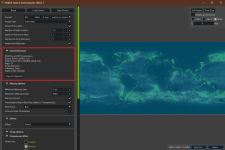
To determine the format of any existing texture including DDS, run NVIDIA Texture Tools Exporter (Standalone) and drag the texture into the window. Expanding the Input Information panel you can see that for example Earth_Ocean_Color.dds uses BC1_UNORM_SRGB format. sRGB means it stored in gamma corrected color space, which on some is converted to linear internally, see Shaders/Mesh.frag for more information.
16-bit
I recommend authoring your textures starting at 16-bit, because you can never add bit-depth, but you can always go down to 8-bit. For heightmaps this is critical, so the first thing you should do in GIMP, Photoshop or other application is switch to 16-bits per channel.
Resolution
For Earth sized planets the standard is 16x8K (16384x8192), for a moon like Luna you could use half that size, 8x4K (8192x4096), or 4x2K, etc. The important thing to know is that all game textures need to be a power of 4, like 4, 8, 16, 32, 64, 128, 256, 512, 1024, 2048, 4096, 8192, 16384. This is due to how games compress textures and generate mipmaps for levels of detail and various distances. If your texture is not exactly a power of 4 it will break mipmap generation and greatly reduce performance and cause other issues.

Art Process
I recommend checking out some of the awesome videos by Linx, the KH Planet Creation Course or many other helpful tutorials and guides about creating planet textures. There is no "right way" or tool, but these should get your rocket pointed flame side down!
I will include a few tips in one of the following posts that I've found very helpful which expand on these methods but are slightly more precise.
Thankfully you're a profeshional planet texture artist and we can skip to the part where you're done!
See my Dying Star System (WIP) mod thread for more!
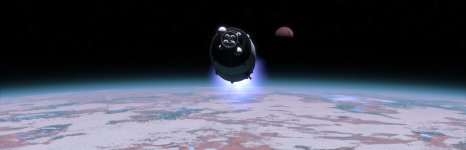
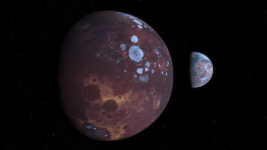
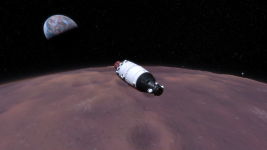
Don't we all. Well, in KSA it is pretty easy, as long as you have some time and patience, and maybe enough VRAM!
If you are a seasoned profeshional, you can just skip ahead to the section on Batch Files, otherwise I recommend you stick with me. Texture compression for games can be a confusing topic, one that still trips me up once in a while. A huge thank you to KSA developer Linx and others on the team!
I will be primarily focusing on texture compression, tools, formats and might even provide some tips for workflow, so let's get started. You will need to download at least the following two applications.
Required Applications
- NVIDIA Texture Tools Exporter (NVTT) Standalone Application - you can use the Photoshop plugin too, but it will crash your PC if you run out of VRAM!!!
- KTX (Khronis Texture) - download the latest release for your OS, used for KTX2 supercompression of heightmaps and optional format for some other textures
WARNING: If NVTT gives you issues with large textures, make sure your drivers are up to date, and you can also try Microsoft Texconv as an alternative.Compression Formats
KSA uses the following compression formats for planet textures:
- Diffuse: DDS BC1 (optionally KTX2, see Mars_Diffuse)
- Normal: DDS BC5u
- Height: KTX2 R16_UNORM
- Ocean_Wind: PNG-24 (possibly BC1)
- Ocean_Color: DDS BC1
- Biome_ID: PNG-32 RGBA (must be uncompressed!)
- Biome_Control: PNG-32 RGBA (or DDS BC3 compression)
WARNING: While KSA does allow you to use PNG / JPG formats, you should only use these for testing! Please do not release mods with large textures (16x8K) in these formats as it will drastically reduce peformance and cause stability issues and crashes.To determine the format of any existing texture including DDS, run NVIDIA Texture Tools Exporter (Standalone) and drag the texture into the window. Expanding the Input Information panel you can see that for example Earth_Ocean_Color.dds uses BC1_UNORM_SRGB format. sRGB means it stored in gamma corrected color space, which on some is converted to linear internally, see Shaders/Mesh.frag for more information.
16-bit
I recommend authoring your textures starting at 16-bit, because you can never add bit-depth, but you can always go down to 8-bit. For heightmaps this is critical, so the first thing you should do in GIMP, Photoshop or other application is switch to 16-bits per channel.
Resolution
For Earth sized planets the standard is 16x8K (16384x8192), for a moon like Luna you could use half that size, 8x4K (8192x4096), or 4x2K, etc. The important thing to know is that all game textures need to be a power of 4, like 4, 8, 16, 32, 64, 128, 256, 512, 1024, 2048, 4096, 8192, 16384. This is due to how games compress textures and generate mipmaps for levels of detail and various distances. If your texture is not exactly a power of 4 it will break mipmap generation and greatly reduce performance and cause other issues.
Art Process
I recommend checking out some of the awesome videos by Linx, the KH Planet Creation Course or many other helpful tutorials and guides about creating planet textures. There is no "right way" or tool, but these should get your rocket pointed flame side down!
I will include a few tips in one of the following posts that I've found very helpful which expand on these methods but are slightly more precise.
Thankfully you're a profeshional planet texture artist and we can skip to the part where you're done!
See my Dying Star System (WIP) mod thread for more!
Last edited:


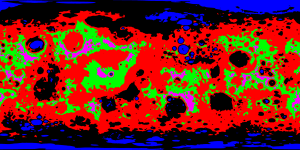
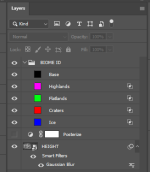
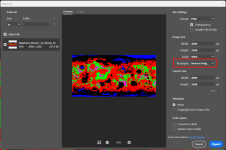
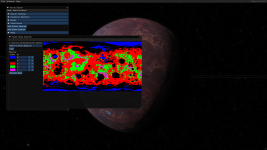
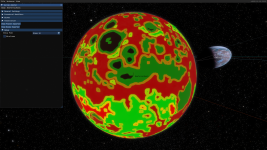
 OPTIONAL: You can compress BiomeControlMap to BC3 format.
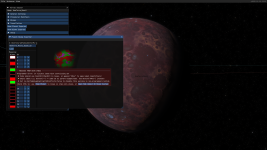
 ERROR: If you see something like this with a bunch of extra Biome IDs, it is most likely you've missed one of the previous steps and your texture contains more than the intended number of biomes. Do not proceed if so!