• ⚠️ Mod Release Rules now apply to this board.

    All mods must include a license, source code (for executable mods), and proper attribution.

    Read the full rules here before posting.

Planet Textures, Materials, and Biomes

UriahGnu

Member
Nov 14, 2025
56
59
So, you want to make your own planets? 😌 Don't we all.

1764158360745.png

Well, in KSA it is pretty easy, as long as you have some time and patience, and maybe enough VRAM! 🫠

If you are a seasoned profeshional, you can just skip ahead to the section on Batch Files, otherwise I recommend you stick with me. Texture compression for games can be a confusing topic, one that still trips me up once in a while. A huge thank you to KSA developer Linx and others on the team!

I will be primarily focusing on texture compression, tools, formats and might even provide some tips for workflow, so let's get started. You will need to download at least the following two applications.

Required Applications
Once you have both of those downloaded and installed, we can proceed!

⚠️WARNING: If NVTT gives you issues with large textures, make sure your drivers are up to date, and you can also try Microsoft Texconv as an alternative.

Compression Formats
KSA uses the following compression formats for planet textures:
  • Diffuse: DDS BC1 (optionally KTX2, see Mars_Diffuse)
  • Normal: DDS BC5u
  • Height: KTX2 R16_UNORM
  • Ocean_Wind: PNG-24 (possibly BC1)
  • Ocean_Color: DDS BC1
  • Biome_ID: PNG-32 RGBA (⚠️must be uncompressed!)
  • Biome_Control: PNG-32 RGBA (or DDS BC3 compression)
⚠️WARNING: While KSA does allow you to use PNG / JPG formats, you should only use these for testing! Please do not release mods with large textures (16x8K) in these formats as it will drastically reduce peformance and cause stability issues and crashes.

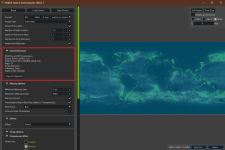
To determine the format of any existing texture including DDS, run NVIDIA Texture Tools Exporter (Standalone) and drag the texture into the window. Expanding the Input Information panel you can see that for example Earth_Ocean_Color.dds uses BC1_UNORM_SRGB format. sRGB means it stored in gamma corrected color space, which on some is converted to linear internally, see Shaders/Mesh.frag for more information.
1764175317792.png

16-bit
I recommend authoring your textures starting at 16-bit, because you can never add bit-depth, but you can always go down to 8-bit. For heightmaps this is critical, so the first thing you should do in GIMP, Photoshop or other application is switch to 16-bits per channel.

Resolution
For Earth sized planets the standard is 16x8K (16384x8192), for a moon like Luna you could use half that size, 8x4K (8192x4096), or 4x2K, etc. The important thing to know is that all game textures need to be a power of 4, like 4, 8, 16, 32, 64, 128, 256, 512, 1024, 2048, 4096, 8192, 16384. This is due to how games compress textures and generate mipmaps for levels of detail and various distances. If your texture is not exactly a power of 4 it will break mipmap generation and greatly reduce performance and cause other issues.

1764157485125.png

Art Process
I recommend checking out some of the awesome videos by Linx, the KH Planet Creation Course or many other helpful tutorials and guides about creating planet textures. There is no "right way" or tool, but these should get your rocket pointed flame side down!

I will include a few tips in one of the following posts that I've found very helpful which expand on these methods but are slightly more precise.

Thankfully you're a profeshional planet texture artist and we can skip to the part where you're done!

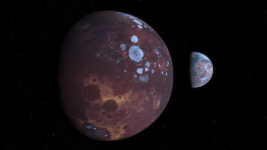
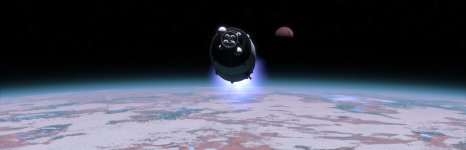
See my Dying Star System (WIP) mod thread for more!
Kitten Space Agency Screenshot 2025.11.24 - 01.31.32.44.jpg

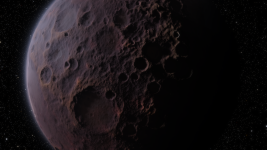
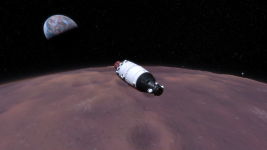
Kitten Space Agency Screenshot 2025.11.25 - 03.14.35.22.pngKitten Space Agency Screenshot 2025.11.25 - 14.19.32.45.pngKitten Space Agency Screenshot 2025.11.25 - 14.21.32.39.png
 
Last edited:
Naming Conventions
Once you have your final textures, I recommend following the KSA standard naming conventions, for example MyPlanet_Diffuse, MyPlanet_Normal, MyPlanet_Height, etc. This will make it much easier to remember what is what and avoid spelling mistakes which will CRASH THE GAME AND DESTROY YOUR COMPUTER! But, no, seriously, naming conventions are really important for consistency. No matter how long I spend in modding communities, it never ceases to amaze me how some people refuse to follow conventions and then keep running into issues. Organization and consistency are extremely important, and KSA is especially case sensitive and not fault tolerant, so expect crashes if you misspell anything.

Texture Compression
Now let's compress those textures! For most you can simply launch the NVIDIA Texture Tools Exporter Standalone Application you installed previously, or with the Photoshop plugin, Save As and select DDS - NVIDA Texture Tools Exporter, etc. However, working with such large textures requires a lot of VRAM. You will likely get a warning about exceeding video memory limits and the tool using the CPU, and while that sounds fine, depending on your OS and hardware, it very much will not be.

I'm on Windows 11 with a Ultra 9 Processor 285K, 96 GB of RAM and plenty of drive space, and an NVIDIA RTX 3070 (8 GB VRAM), and this was still crashing my computer, causing the first Photoshop file curruption in ~20 years and loosing six hours of work. Don't underestimate how demanding this task will be, and make sure to backup the files you spend so long creating, and save BEFORE you attempt to save/export/compress. I also recommend shutting down all other demanding applications, such as Chrome, from the taskbar. Anything using the GPU and system memory depending on your PC will effect this process.

Normally compression is fairly straight forward, you simply select the format (e.g. BC1) from the dropdown, make sure Generate Mipmaps is checked, and save the file as a DDS. However, due to the issues of compressing large textures, we are not going to be doing that, and I'll give you an option that will save you time and frusteration.

Batch Files
I highly recommend resisting the urge to create a single batch file to convert all your textures at once. Instead, we are going to create a single batch file for each texture. Not only will this (mostly) avoid the memory issue and possibly damaging your PC (no joke), but it also promotes consistency, as every time you compress textures they will use the exact same settings.

Diffuse / Color Maps
To create a batch file, start a new text document in any application and Save As with the .bat extension. In Notepad you can just save it as Generate_Diffuse.bat for example.

Enter the following code:
INI:
"C:\Program Files\NVIDIA Corporation\NVIDIA Texture Tools\nvtt_export.exe" ^
 "MyPlanet_Diffuse.png" ^
 -f bc1 ^
 --output "Output/MyPlanet_Diffuse.dds" ^
 --quality highest ^

Change the names your input and output textures as you like, and change the path to nvtt_export.exe if you installed it in another location.

Now simply save the batch file changes, save your diffuse texture in the same folder as this batch file, and double click the batch file to run. If sucessful you're see the console appearing with a Processing message. It will generate the DDS texture in the Output folder, which you can copy into your KSA mod.

Additional Textures
There may be other textures required for planets, such as Ocean_Color, Ocean_Wind, etc. Follow the same steps as Diffuse, but these should use a much smaller resolution. For Ocean_Color it should be 4 times smaller, so if your Diffuse is 16x8K, it can be 4x2K (4096x2048), and Ocean_Wind can be 8 times smaller, 2x1K (2048x1024).

Normal Map
For the normal map, you will need to save your final heightmap as a 16-bit PNG. Duplicate your first batch file, and rename it to Generate_Normal.bat then edit and paste the following, again renaming the input/output files.
INI:
"C:\Program Files\NVIDIA Corporation\NVIDIA Texture Tools\nvtt_export.exe" ^
 "MyPlanet_Height.png" ^
 --to-normal ^
 -f bc5 ^
 --output "Output/MyPlanet_Normal.dds" ^
 --quality highest ^
 --normal-scale 2 ^
 --normal-invert-y

It is important to note that KSA uses the OpenGL normal format, where the Green Channel is inverted, otherwise the lighting on your planet will not be correct. This is the same as Blender, but different from something like Unreal Engine which uses the DirectX format. The above batch file uses the normal-invert-y parameter to do this.

I also have set the quality to highest, and scaled the normal by 2, this increases the intensity of the normal map, you can set it back to 1, or increase it as you like, often depending on your input heightmap. For larger planets like Earth I tend to increase this to between 6-8, while smaller moons could be between 1-2.

Again saving your changes to the batch file and double click to generate should save a DDS file in the Output folder, however Windows Explorer will probably not show a preview icon due to the BC5 format. If you open the texture in Photoshop or another application, you'll notice it appears to be kind of yellow in color, unlike most normal maps you've seen which are kind of blue. This is due to how BC5 stores information.

Most compression uses 16-bit in total, this means for an RGB color texture you have to split those bits into three channels, for BC1 / DXT1 this uses R5 G6 B5 (5+6+5=16-bits).
However, for a normal map it is only really important to store the Red and Green (XY) channels, and the Blue or Z channel can be derived mathematically at runtime. For this purpose the 16-bit compression is split in two, R8 G8, and those extra bits per channel provide normal maps with much higher quality lighting required for games.

There are also ways to generate normal maps from within KSA using the Debug Terrain menu, but this has complications and caveats, and I think it is better to start here for now.

Height Map
You should have already saved your heightmap as a 16-bit PNG, to compress it we will use a different file type and the KTX application you should have installed at the beginning. KTX2 "supercompression" uses a different special format for saving various textures. Again we'll use a batch file, so duplicate one and rename it to Generate_Height.bat and enter the following code:

INI:
ktx create --format R16_UNORM MyPlanet_Height.png Output/MyPlanet_Height.ktx2

In this case for a heightmap we only care about a single channel of data, essentially grayscale, and while your texture may have been saved as an RGB color texture, this information will be discarded. For KTX format heightmaps it uses the R16_UNORM format, that means a single channel (red) 16-bit unsigned normalized value between 0.0 and 1.0.

File Sizes
For a sanity check these are the resulting file sizes, if your textures are not the same, something is wrong.

At 16384x8192 resolution:
  • Diffuse (DDS): 85.3 MB (89,478,632 bytes)
  • Normal (DDT): 170 MB (178,957,136 bytes)
  • Height (KTX2): 256 MB (268,435,652 bytes)
At 8192x4096 resolution:
  • Diffuse (DDS): 21.3 MB (22,369,768 bytes)
  • Normal (DDS): 42.6 MB (44,739,408 bytes)
  • Height (KTX2): 64.0 MB (67,109,060 bytes)
 
Last edited:
  • Like
Reactions: Thoteus
Planet Definition (XML)
You can include textures however you like in a mod, however I recommend putting them in the Textures folder, and if you end up with a lot should probably organize them into sub-folder like Textures/MyPlanet/MyPlanet_Diffuse.dds.

Excluding the additional required XML properties, a planet defines the textures we have compressed as follows.
XML:
<TerrestrialBody Id="MyPlanet" Parent="Sol">
    <MeshCollection Id="Default"/>
    <Color R="1.0" G="1.0" B="1.0" />
    <Diffuse Path="Textures/MyPlanet_Diffuse.dds" Category="Terrain"/>
    <Normal Path="Textures/MyPlanet_Normal.dds" Category="Terrain"/>
    <Height Path="Textures/MyPlanet_Height.ktx2" Category="Terrain">
        <Maximum Km="15.0"/>
        <Minimum Km="-10.0"/>
    </Height>
</TerrestrialBody>

Note that the <Color> property has nothing to do with the planet color, it defines the color of the orbit line.

Ocean
The <Ocean> component allows several textures to be defined, excluding the additional required XML properties:
XML:
<TerrestrialBody Id="MyPlanet" Parent="Sol">
    <Ocean>
        <Level Km="0" />
        <MeshCollection Id="OceanMyPlanet"/>
        <WindWaves>
            <!-- The WindTexture is used to adjust wind speed and fetch locally, lerping between min and max-->
            <WindTexture Path="Textures/MyPlanet_Ocean_Wind.png" Category="Terrain"/>
            <MinWindSpeed Value="2.0" />
            <MinWindFetch Km="30.0"/>
            <MaxWindSpeed Value="15.0" />
            <MaxWindFetch Km="800.0"/>
            <Directionality Value="1.0"/>
            <FoamAmount Value="0.5"/>
            <Depth Km="0.2"/>
        </WindWaves>
        <!-- <GerstnerWaves> -->
        <!-- Color multiplied by ColorTexture -->
        <Color R="1.0" G="1.0" B="1.0" />
        <ColorTexture Path="Textures/MyPlanet_Ocean_Color.dds" Category="Terrain"/>
        <TransparencyDepth M="100" />
    </Ocean>
</TerrestrialBody>
 
Last edited:
Biomes

Biomes allow you to define various <Materials> and <ProceduralModifiers> (covered in the following posts) within a planet's Terrain system so that areas of a planet can have a different appearance, especially when close up using detail maps and displacement.

KSA uses two maps for biomes:
  1. Biome_ID
  2. Biome_Control
Unlike the previous textures, you do not generate these textures, they are generated in KSA using the Debug Terrain Editor from an input texture which you do create.

Input Biome Map
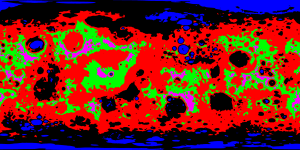
Your input texture should look something like this. It is absolutely critical that this texture have only the number of colors that you need, the number names and colors you use for biomes is arbitrary, within reason but the process once you decide is not.

For example I used a total of 5 biomes.
  • Index 0: Blue (#0000ff) "Ice"
  • Index 1: Black (#000000) "Base"
  • Index 2: Red (#ff0000) "Craters"
  • Index 3: Green (#00ff00) "Flatlands"
  • Index 4: Magenta (#ff00ff) "Highlands"
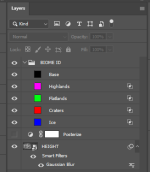
There are many ways to generate such a map, for example I used Photoshop's Blend If Underlying Layer to select parts of my heightmap for each of those colors. I then applied a solid black color on top of the colors in Blend Overlay mode, which fills in the non-color pixels. This results in a texture with only 5 solid colors, each will be a biome.

1764172520539.png

Another tip is to apply a small Gaussian Blur filter to your heightmap to smooth some of the high frequency details out, or even Posterization to split it into a number of stepped layers. You can also paint or use any combination of methods, as long as your final colors use a similar method that results in pixel perfect solid colors, no gradients.

I've authored this example Biome ID map at 4x2K (4096x2048), as it should not be the full resolution of your original diffuse/normal/height.

I've uploaded this example heightmap for testing here: NewTerra_Moon1_Biome_ID.png (ZIP)

NewTerra_Moon1_Biome_ID.png 1764166567541.png

Export Biome Map
Once you have your final height map you need to export it without any resampling. This is critical to keeping the exact number of solid colors.

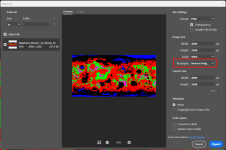
In Photoshop instead of Save As, go to File -> Export -> Export As, and select the Resample method: Nearest Neighbor, which will not apply any anti-aliasing.

1764167073454.png

Generating Biome Maps
Copy your saved Biome PNG texture, and navigate to where KSA saves user data, where there are import/export folders, by default this will be in:
[B]%USERPROFILE%\Documents\My Games\Kitten Space Agency[/B]

There you will find an \Kitten Space Agency\imports\biomeMaps folder, paste your texture inside that folder, and you need to copy the name of the file, for example NewTerra_Moon1_Biome_ID.

Next, run KSA and to open the Terrain Editor, go to the View dropdown, at the bottom expand Debug and select Show Terrain Debug.

There are two buttons, the second of which is named Show Biome Exporter, click that.

In the text field enter the name of the texture you copied, "NewTerra_Moon1_Biome_ID", then make sure to press Enter, then click the Load button.

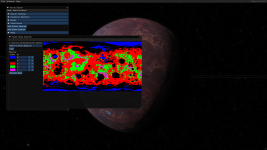
If sucessful, it will generate a preview and the exact biome IDs (index) that you will need to add to your planet's <BiomeMaterials>, and it is important to remember the order of these so take a screenshot, like so:

Kitten Space Agency Screenshot 2025.11.25 - 13.49.48.75.png

Finally the generated textures will be located in the \Kitten Space Agency\exports\planets folder, copy these into your mod Textures folder and rename them to fit your naming conventions.

⚠️WARNING: BiomeIDMap must remain as an uncompressed PNG!!!
✅OPTIONAL: You can compress BiomeControlMap to BC3 format.

🛑ERROR: If you see something like this with a bunch of extra Biome IDs, it is most likely you've missed one of the previous steps and your texture contains more than the intended number of biomes. Do not proceed if so!
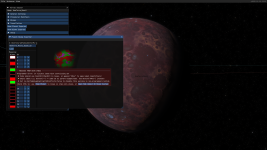
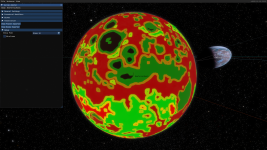
Debug steps:
  1. Check that your biome map was exported as a RGB 32-bit PNG
  2. Check that you did not apply filtering, there should only be the solid colors you used for each biome

Kitten Space Agency Screenshot 2025.11.25 - 13.26.29.92.png

The <Terrain> definition should now include BiomeIDMap, BiomeControlMap and 5 BiomeMaterials in the same order as before, I've left out most of the XML to fit here.
XML:
<TerrestrialBody Id="MyPlanet" Parent="Sol">
    <Terrain>
        <BiomeIDMap Path="Textures/MyPlanet_BiomeID.png" Category="Terrain"/>
        <BiomeControlMap Path="Textures/MyPlanet_BiomeControl.png" Category="Terrain"/>
        <BiomeMaterials>
            <!-- INDEX 0 (BLUE) -->
            <BiomeMaterial Name="Ice">
                <GroundMaterial>
                    <!-- textures / properties -->
                </GroundMaterial>
                <SlopeMaterial>
                    <!-- textures / properties -->
                </SlopeMaterial>
            </BiomeMaterial>

            <!-- INDEX 1 (BLACK) -->
            <BiomeMaterial Name="Base">
                <GroundMaterial>
                    <!-- textures / properties -->
                </GroundMaterial>
                <SlopeMaterial>
                    <!-- textures / properties -->
                </SlopeMaterial>
            </BiomeMaterial>

            <!-- INDEX 2 (RED) -->
            <BiomeMaterial Name="Craters">
                <GroundMaterial>
                   <!-- textures / properties -->
                </GroundMaterial>
                <SlopeMaterial>
                    <!-- textures / properties -->
                </SlopeMaterial>
            </BiomeMaterial>

            <!-- INDEX 3 (GREEN) -->
            <BiomeMaterial Name="Flatlands">
                <GroundMaterial>
                    <!-- textures / properties -->
                </GroundMaterial>
                <SlopeMaterial>
                    <!-- textures / properties -->
                </SlopeMaterial>
            </BiomeMaterial>

            <!-- INDEX 4 (MAGENTA) -->
            <BiomeMaterial Name="Highlands">
                <GroundMaterial>
                    <!-- textures / properties -->
                </GroundMaterial>
                <SlopeMaterial>
                    <!-- textures / properties -->
                </SlopeMaterial>
            </BiomeMaterial>
        </BiomeMaterials>
    </Terrain>
</TerrestrialBody>

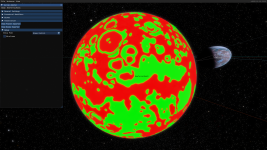
Once you have assigned the biome maps to your planet, you can verify them in the Terrain Editor under Debug Mode: Biome Id | Biome Control
Kitten Space Agency Screenshot 2025.11.25 - 14.16.56.05.pngKitten Space Agency Screenshot 2025.11.25 - 14.17.01.39.png
 
Last edited: